
Operation Manual

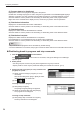
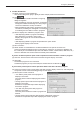
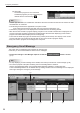
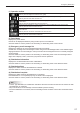

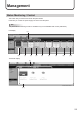
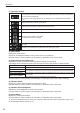
Table Of Contents

24
Emergency Distribution
(3) Program data to be distributed
Displays the names of the programs assigned to the panels.
Double-click an assigned program to edit it using the Program Editor of the SHARP Digital Signage
Software. A program or a stop command can be assigned if there is no already assigned program.
Click the header to sort the panels in the ascending or descending order of the program names.
Right-click on the schedule list to display a menu, which lets you perform various operations.
(4) Distribution Information
Displaystheconrmeddatesandtimesofdistribution.
Click the header to sort the panels in the ascending or descending order of their dates and times.
(5) Distribution Start
Displays the dates and times the distribution is started.
Click the header to sort the panels in the ascending or descending order of the dates and times.
(6) Distribution Complete
Displays the dates and times the distribution is completed.
If the distribution is not completed properly, the reason will be displayed.
Click the header to sort the panels in the ascending or descending order of the dates and times.
TIPS
Stop commands for programs cannot be edited by double-clicking.•
Oncethedistributionisconrmed,theprogramcannotbeedited.Canceltheconrmationrsttoeditit.•
Distributing break-in programs and stop commands
Click the 1. function button.
If the
function button is not shown, change the settings in Pro Manager
Options. (p.11)
Select panels.2.
Use the group tree to show only the panels registered in a group on the list.•
Specifyaltertoshowonlythepanelsthatsatisfytheconditionsonthelist.(p.10)•
3. Assign a break-in program (or a stop command for
program) to a panel.
(1) Select a panel to assign a program (or a stop
command).
Click while holding down [Ctrl] or [Shift] to select
multiple panels at the same time.
(2) Click
.
To assign a break-in program:
(3) Click [Assign Program].
The [Assign Program] dialog box appears.
(4) Select the program data and click [Assign].
The program is now assigned.
To assign a stop command:
(3) Click [Assign Stop command for Program].
The stop command is now assigned.