
Operation Manual
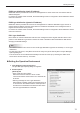

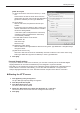

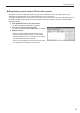

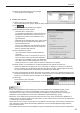

Table Of Contents

13
Installing/Launching
[HTTP Server] tab
(1) “Start HTTP server when this PC boots up.” check
box
Check this box to start the HTTP server from the
management PC when using PUSH type distribution
(dynamic IP address) or PULL type distribution.
(2) HTTP setting
Sets the user name, the password and the port
number.
If connection from the viewer PC fails, contact your
networkadministratorwhomaintainstherewallto
conrmthesettingdetails.
•UserName(within30alphanumericcharacters)
•Password(within30alphanumericcharacters)
•PortNumber(1-65535)
The initial default values are as follows:•
Port Number: 80
User Name: http
Password: http
(3) Distribution folder setting
Sets the folder for storing distribution data when using PULL type distribution. Click [Browse] to
change the folder.
(4) [Start HTTP server now]
Click this to start the HTTP server immediately. Click this to start the HTTP server when using
PUSH type distribution (dynamic IP address) or PULL type distribution.
Click [OK].3.
Personalrewallsettings
If you plan to distribute content over a network, you must free a TCP/IP port for the SHARP Digital •
SignageSoftwaretousewhenthedistributionportisassignedtoapersonalrewall.
Note that you can add this port number to the “Windows Firewall” exception list in Windows Control •
Paneltoallowaconnection.Alternatively,youcanalsoaddexecutablele“c:\Programles\
sharp\e-Signage\www\w3d.exe” to the “Windows Firewall” exception list to allow a connection.
Starting the HTTP server
Click [Options] in the [Tools] menu.1.
The [Pro Manager Options] dialog box appears.
Click the [HTTP Server] tab.2.
Click [Start HTTP server now].3.
The HTTP server will be started.
Check the “Start HTTP server when this PC boots up.” check box4.
This lets the HTTP server start when the management PC boots up.
Click [OK].5.
(1)
(2)
(3)
(4)