
Operation Manual


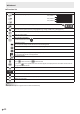
Table Of Contents
- IMPORTANT INFORMATION
- DEAR SHARP CUSTOMER
- SAFETY PRECAUTIONS
- TIPS AND SAFETY INSTRUCTIONS
- MOUNTING PRECAUTIONS
- Supplied Components
- System Requirements
- Part Names
- Connecting Peripheral Equipment
- Connecting the Power Cord
- Binding Cables
- Preparing the Remote Control Unit
- Mounting a web camera
- Attaching the wireless adapter
- Turning Power On/Off
- Touch Pen
- Touch action
- Basic Operation
- Whiteboard
- Bytello Share
- PDF Viewer
- File Explorer
- Web Browser
- Updating the Software (Update)
- Common Settings Menu
- Administrator Settings Menu
- Reset/Functional Restriction Setting (FUNCTION Menu)
- Controlling the Monitor with a computer (RS-232C)
- Troubleshooting
- Specifications
- Intellectual Property Rights and Other Matters
- Mounting Precautions (For SHARP dealers and service engineers)

27
E
Basic Operation
Overlay board (Mark)
You can draw characters or lines on the images being displayed on this monitor.
Touch
on the toolbar.
Operation bar
Tool Function
Pen
Draw a line. You can change the settings (color).
Brush
Draws a line without hiding objects under the line. You can change the settings (color).
Clean
Clear all the drawn lines.
Save
Save a board that is being drawn as an image. The image will be saved in the “Notes/Mark” folder.
Close
Exit the application.
You can erase an area of the screen that you touch with your palm.
Touch the screen with your palm, and when the cursor is appear, move your palm.
TIPS
• The operation bar can be moved by dragging.
• You cannot save a board in the USB flash drive.
After saving it in the internal storage, copy it to the USB flash drive with “File Explorer”.
• Cannot be saved when HDCP-compliant images input from the HDMI input terminal / USB Type-C port / OPS are being
displayed.
• You cannot add a sheet.