
Operation Manual


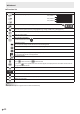
Table Of Contents
- IMPORTANT INFORMATION
- DEAR SHARP CUSTOMER
- SAFETY PRECAUTIONS
- TIPS AND SAFETY INSTRUCTIONS
- MOUNTING PRECAUTIONS
- Supplied Components
- System Requirements
- Part Names
- Connecting Peripheral Equipment
- Connecting the Power Cord
- Binding Cables
- Preparing the Remote Control Unit
- Mounting a web camera
- Attaching the wireless adapter
- Turning Power On/Off
- Touch Pen
- Touch action
- Basic Operation
- Whiteboard
- Bytello Share
- PDF Viewer
- File Explorer
- Web Browser
- Updating the Software (Update)
- Common Settings Menu
- Administrator Settings Menu
- Reset/Functional Restriction Setting (FUNCTION Menu)
- Controlling the Monitor with a computer (RS-232C)
- Troubleshooting
- Specifications
- Intellectual Property Rights and Other Matters
- Mounting Precautions (For SHARP dealers and service engineers)

22
E
Basic Operation
About the home screen of APPLICATION mode
This appears when the input mode is changed to APPLICATION.
(3)
(6) (5)
(4)(1)
(2)
(2)
(2)
(1) Start “Whiteboard”. (See page 29.)
Start “Bytello Share”. (See page 35.)
Start “Web Browser”. (See page 40.)
Start “File Explorer”. (See page 38.)
Display the list of applications.
Display “Updater”. (See page 41.)
Start “Whiteboard”. (See page 29.)
Start “Bytello Share”. (See page 35.)
Start “Web Browser”. (See page 40.)
Start “File Explorer”. (See page 38.)
Confirm the downloaded file.
TIPS
• When a confirmation screen to allow access appears when the application is started for the first time, select “Allow”.