
Operation Manual


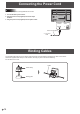


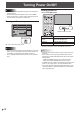


Table Of Contents
- IMPORTANT INFORMATION
- DEAR SHARP CUSTOMER
- SAFETY PRECAUTIONS
- TIPS AND SAFETY INSTRUCTIONS
- MOUNTING PRECAUTIONS
- Supplied Components
- System Requirements
- Part Names
- Connecting Peripheral Equipment
- Connecting the Power Cord
- Binding Cables
- Preparing the Remote Control Unit
- Mounting a web camera
- Attaching the wireless adapter
- Turning Power On/Off
- Touch Pen
- Touch action
- Basic Operation
- Whiteboard
- Bytello Share
- PDF Viewer
- File Explorer
- Web Browser
- Updating the Software (Update)
- Common Settings Menu
- Administrator Settings Menu
- Reset/Functional Restriction Setting (FUNCTION Menu)
- Controlling the Monitor with a computer (RS-232C)
- Troubleshooting
- Specifications
- Intellectual Property Rights and Other Matters
- Mounting Precautions (For SHARP dealers and service engineers)

18
E
Caution
• Turn on the monitor first before turning on the computer or
playback device.
• When switching the main power switch or the POWER
button off and back on, always wait for at least 5 seconds.
A short interval may result in a malfunction.
Turning on the main power
Main power switch
Off mode, when main power is off.
Caution
• The main power must be turned on/off with the main power
switch. Do not connect/disconnect the power cord or turn
the breaker on/off while the main power switch is on.
• For a complete electrical disconnection, pull out the main
plug.
Turning Power On/Off
Turning power on
1. Press the POWER button.
POWER button / Power LED
Status Status of the monitor
Blue lit
Power on
Sleep state (Backlight off)
Orange lit Power off (Standby state*)
Blue flashing Input signal waiting state
* Standby mode when “Power Save Mode” is set to on.
TIPS
• When the main power switch is off, the monitor cannot be
turned on.
• If the monitor is in the input signal waiting state and you
perform the operation described below, the monitor enters
standby state.
- Press the POWER button on the remote control unit.
- Press and hold the POWER button on the monitor.
• To disable the logo screen from displaying when turning the
power on, set “Logo Screen” to off on the Setup menu.
• You can fix the input mode that appears after startup. Set
“Start Input Mode” of “Startup & Shutdown” on the System
menu. (See page 48.)