
Operation Manual


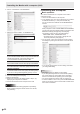


Table Of Contents
- IMPORTANT INFORMATION
- DEAR SHARP CUSTOMER
- SAFETY PRECAUTIONS
- TIPS AND SAFETY INSTRUCTIONS
- MOUNTING PRECAUTIONS
- Supplied Components
- System Requirements
- Part Names
- Connecting Peripheral Equipment
- Connecting the Power Cord
- Binding Cables
- Preparing the Remote Control Unit
- Removing the Handles
- Mounting a web camera
- Turning Power On/Off
- Touch Panel / Touch Pen Preparations
- Touch action
- Basic Operation
- Menu Items
- Initialization (Reset)/Functional Restriction Setting (FUNCTION)
- Controlling the Monitor with a computer (RS-232C)
- Controlling the Monitor with a computer (LAN)
- Troubleshooting
- Specifications
- Mounting Precautions (For SHARP dealers and service engineers)

57
E
n
INFORMATION
Information about this monitor appears.
n
CONTROL
You can control the operations corresponding to the buttons
(POWER button, INPUT button, SIZE button, etc.) on the
remote control unit. (See page 26.)
TIPS
• In standby mode, Power ON is the operation available.
n
ADJUSTMENT
You can adjust these settings which are also available on the
monitor’s menu.
• SCREEN (See page 31.)
• PICTURE (See page 32.)
• PICTURE (ADVANCED) (See page 33.)
• AUDIO (See page 33.)
• SETUP (See page 34.)
• MONITOR (See page 36.)
• OTHERS (See page 38.)
• SCHEDULE (See page 40.)
• PIP/PbyP (See page 37.)
• CONFIGURE QUAD-SCREEN (See page 37.)
• FUNCTION (See page 43.)
TIPS
• After changing DISPLAY COLOR PATTERN to OFF, click
[Refresh] to correctly retrieve the status of the monitor.
Controlling the Monitor with a computer (LAN)