
Operation Manual




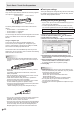
Table Of Contents
- IMPORTANT INFORMATION
- DEAR SHARP CUSTOMER
- SAFETY PRECAUTIONS
- TIPS AND SAFETY INSTRUCTIONS
- MOUNTING PRECAUTIONS
- Supplied Components
- System Requirements
- Part Names
- Connecting Peripheral Equipment
- Connecting the Power Cord
- Binding Cables
- Preparing the Remote Control Unit
- Removing the Handles
- Mounting a web camera
- Turning Power On/Off
- Touch Panel / Touch Pen Preparations
- Touch action
- Basic Operation
- Menu Items
- Initialization (Reset)/Functional Restriction Setting (FUNCTION)
- Controlling the Monitor with a PC (RS-232C)
- Controlling the Monitor with a PC (LAN)
- Troubleshooting
- Specifications
- Mounting Precautions (For SHARP dealers and service engineers)

13
E
Connecting Peripheral Equipment
7. Audio 1 input terminal
8. Audio 2 input terminal
• Useanaudiocablewithoutresistance.
• Settheaudioinputterminaltobeusedineachinput
modeinAUDIOSELECTontheSETUPmenu.
9. DisplayPort output terminal
• Thescreendisplayedonthemonitorandtheaudiooutput
fromthemonitorcanbeoutputtoanexternaldevice.
• UseacommerciallyavailableDisplayPortcable
(conformingtotheDisplayPortstandard).
• OutputtingHDCP-encryptedvideorequiresanexternal
devicewhichsupportsHDCP.
10. Audio output terminal
• Theoutputsoundvariesdependingontheinputmode.
• Thevolumeoftheoutputsoundcanbexedbysetting
AUDIOOUTPUTofAUDIOOPTIONontheSETUP
menu.
• Itisnotpossibletocontrolthesoundoutputfromthe
audiooutputterminalswiththeAUDIOmenu.
11. Touch pen adapter port
• Connectthetouchpenadapterinordertousethetouch
pen.(Seepage19.)
12. USB 1 (type B) port
• Tousethetouchpanelwithacomputerconnectedtothe
terminalbelow,connectthetouchpaneltothecomputer
withaUSBcable.
(Factorysetting.CanbechangedinTOUCHINPUT
SELECTontheSETUPmenu.)
-D-sub1inputterminal
-DisplayPortinputterminal
-HDMI1inputterminal
13. USB 2 (type B) port
• Tousethetouchpanelwithacomputerconnectedtothe
terminalbelow,connectthetouchpaneltothecomputer
withaUSBcable.
(Factorysetting.CanbechangedinTOUCHINPUT
SELECTontheSETUPmenu.)
-D-sub2inputterminal
-HDMI2inputterminal
-HDMI3inputterminal
14. RS-232C input terminal
• Themonitorcanbeconnectedtoacomputerusingthe
RS-232Cconversioncable(supplied)andacommercially
availableRS-232straightcabletocontrolthemonitor
fromthecomputer.
15. LAN terminal
• Youcancontrolthemonitorfromacomputeronanetwork
byconnectingacommerciallyavailableLANcable
betweenthisterminalandanetwork.
16. External speaker terminals
• Touseexternalspeakers,setSPEAKERSELECTto
EXTERNALinAUDIOOPTIONontheSETUPmenu.
• Besuretouseexternalspeakerswithanimpedanceof6Ω
orgreaterandaratedinputofatleast10W.
12
1.Whilepushingthetab,insertthetipofthecable.
2.Releasethetab.
TIPS
• Besuretoconnectthe+and-terminalsandtheleftand
rightspeakersproperly.
• Avoidshortcircuitingthe+and-terminals.
• WhenSPEAKERSELECTissettoEXTERNAL,the
internalspeakersaredisabled.
17. USB cable
• TousetheUSBportonthefrontofthetray(forUSB
device)(USB2.0compliant),connecttheUSBcableto
theUSBportonthecomputer.
USB port (for USB device)
Computer
*Thetouchpanelmustbeconnectedseparately.