
Web Browser Application Operation Manual


5
E
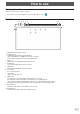
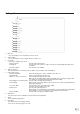
Settings Screen
1. Back icon
Close the Settings screen, and back to previous screen.
2. Search engine
Choose and register a search engine which you want to use.
3. Passwords
Open some settings for password
- Save passwords Set ON / OFF of this function.
- Auto Sign-in Set ON / OFF of the function to sign-in to a web site automatically with using saved
credentials.
- Check Passwords This function is not available.
4. Address and more
Set ON / OFF of the save function such as address, phone number, and e-mail address.
5. Privacy and security
- Clear browsing data Delete browsing history, cookies, site data, cache files, etc.
- Safe Browsing Select a safe browsing protection level.
- Always use secure connections Set the HTTPS priority mode ON / OFF.
When turned on, HTTPS will be used preferentially when accessing web pages, and
sites that do not support HTTPS will be warned before loading.
- Preload pages for faster browsing Set ON / OFF of the page preload function.
and searching When turned on, the pages that are expected to be accessed are preloaded when the
web page is displayed.
- Use secure DNS Set ON / OFF of the secure DNS usage setting.
If it is ON, set the provider to be used.
- Do Not Track Set ON / OFF of tracking refusal.
When turned on, a tracking refusal request will be sent along with the browsing traffic.
(Note) Whether or not to respond to the request depends on the website.
- Privacy Sandbox Set ON / OFF of the privacy sandbox function.
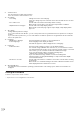
6. Notifications
Set ON / OFF of various notifications from the web browser application.
7. Theme
Select a display design theme.
8. Homepage
Set ON / OFF of the homepage function.
If it is ON, set the home page to be used.
2
14
3
4
5
6
7
8
9
10
11
12
13
1