
Manual





On-Screen Display Menu
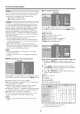
1 Insert the USB memory device with the update file
into the SERVICE terminal on the TV.
7 Press ENTER to start updating.
o The screen becomes dark for a while until the update
screen can be displayed. Please wait for the update
screen to appear. Do not unplug the AC cord.
2 Press MENU to display the MENU screen, and then
press _/1_ to select "Digital Setup".
3 Press ,L/Y to select "Software Update", and then
press ENTER.
• If you have already set the Secret No., go to step 4.
4 Input the 4-digit secret number by using 0-9.
5 Press ENTER to start checking the data in the USB
memory device.
J
Example
6 During the data checking, "Checking" blinks.
o The current version ot the TV software and the version of
the update file on the USB memory device are displayed.
To update the TV software with the update file, select
"Yes", and then press ENTER.
Example
• Do not remove the USB memory device or unplug the
AC cord while the software is being updated.
8 When the software is successfully updated, a screen
is displayed indicating that the update process is
cornpleted.
After this screen is displayed, the TV automatically
turns off and then turns on again.
Example
o If the update has failed, check the file in the USB
memory device and try Software Update again.
o If the USB memory device is not properly installed or the
correct update file cannot be tound on the USB memory
device, an error message is displayed.
o Check the file on the USB memory device, and then
reinsert the USB memory device correctly.
9 After the screen shown below is displayed, press
ENTER.
10 Remove the USB memory device.
26