
Manual

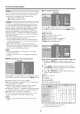




On-Screen Display Menu
Q • • -
_I_ _ _ *_ .....
When listening to music from a music program, you
can turn the screen off and enjoy audio only.
On." Audio is output without screen image.
Off: Both screen images and audio are output.
o The screen image will return to normal when a batten
(except those for audio adjustment, such as VOL, MUTE,
AUDIO) is pressed.
If the image does not corne in clearly from the external
equipment connected to INPUT 1, you may need to
change the input signal type setting from the list below.
Auto/COMPONENT/VIDEO
o if the selected signal type is incorrect, images are not
displayed at all or are displayed without any color.
o Refer to your external equipment operation manual for the
signal type.
o If you set INPUT 1 to "Auto", the TV will automatically select
the input signal.
o Setting INPUT 1 signal selection to "Auto" when other
equipment is connected will result in the following
connection priority.
INPUT 1:
% COMPONENT VIDEO
_2_VIDEO
To watch an HDMI or PC-IN equipment image,
select "INPUT5", "INPUT6" or "INPUT7" frorn INPUT
SOURCE menu using INPUT on the remote control
unit or on the TV.
Auto View:
Enable: To use View Mode based on signal
recognition, including an HDMI signal
Disable: No function.
o Refer to your external equipment operation manual for the
signal type.
o When connecting a DVFHDMI conversion adapter/cable to
the HDMI terminal, the image may not come in clearly.
Determines whether the AUDIO terminal is used for
INPUT 4 (PC-IN) or INPUT 6 (HDMI).
Input 4 (PC}: Select this item when the audio signal is
input via the INPUT 4 (PC4N) terminal using an analog
RGB cable (D sub 15 pin cable or VGA cable).
Input 6 (HDMI}: Select this item when the audio signal
is input via the INPUT 6 (HDMI) terminal using a DVI
HDMI conversion cable.
o When "PC Audio Select" is set to "Input 6 (HDMI)", sound
will not be produced if you use on_/an HDMI certified
cable to connect HDMFcompatible equipment. To produce
sound, you should make an analog audio connection.
o If you want to connect HDMFcompatible equipment using
only an HDMI certified cable, set "PC Audio Select" to
"Input 4 (PC)".
Different sound sources sometimes do not have the
same loudness level, such as a program and its
cornmercial breaks. The Automatic Volume Control
(Auto Volume) reduces this problem by equalizing
levels.
This function emphasizes speech against background
noise for greater clarity.
Allows you to select what controls the audio output.
Fixed: Sound via speaker is adjusted with VOL+/- on
the remote control unit or VOL +/- on the TV.
Sound via the OUTPUT terminal is not adjustable and
outputs at a consistent level.
Variable: Sound via the OUTPUT terminal is adjusted
with VOL+/- on the remote control unit or VOL+/-
on the TV. Sound via speaker is mated.
_Ad
Select the video signal system corr_patible with your
equipment from the list below:
Auto/NTSC/PAL- M/PAL- N
"Color System" car/only be set for the INPUT 1 VIDEO and
INPUT 3.
If you have already set the Secret No., input the 4 digit
secret number here. See page 21 for setting a secret
number.
_ _ .......
This function allows you to adjust the closed caption
screen appearance to suit your preference. You can
adjust 7 items: "Caption Size", "Font Style", "Foreground
Color", "Foreground Opacity", "Background Color",
"Background Opacity" and "Character Edge".
Example:
Selectable items available for "Font Style".
Default: The font specified by broadcasting station or
default font.
Type 0: Proportional font used in the MENU screen.
Type 1: Monospaced with serifs.
Type 2: Proportionally spaced with serifs.
Type 3: Monospaced without serifs.
Type 4: Proportionally spaced without serifs.
Type 5: Casual font type.
Type 6: Cursive font type.
Type 7: Small capitals.
For resetting adjustments to the factory preset values,
press A/_ to select "Reset", and then press ENTER.
The default value depends on the broadcasting station.
24