
Manual

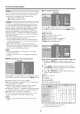




On-Screen Display Menu
For automatically adjusting the PC image.
Yes: Auto Sync. starts and "Now adjusting the image."
displays.
No: This function does not work.
o When "Auto Sync." is successful, "Completed" displays, if
not, "Auto Sync." failed.
o "Auto Sync." may fail even if "Completed" displays.
o "Auto Sync." may fail if the computer image has low
resohJtion, has unclear (black) edges, or is moved while
executing "Auto Sync.".
o Be sure to connect the PC to the TV and switch it on before
starting "Auto Sync.".
Ordinarily you can easily adjust the picture as
necessary to change image position using "Auto Sync.".
In some cases, however, manual adjustment is needed
to optimize the image.
H-Poe.: Centers the image by moving it to the left or right.
V-Poe.: Centers the image by moving it up or down.
Cleck: Adjust when the image flickers with vertical
stripes.
Phase: Adjust when characters have low contrast or
when the image flickers.
o For resetting all "Fine Sync." adjustment items to the factory
preset values, press A/T to select "Reset", and then press
ENTER.
o It is not necessary to adjust the "Clock" or "Phase" when a
digital signal is being input, so it cannot be selected.
o The default cursor position may not be in the center,
because the screen position variable ranges may be
asymmetrical.
o The screen position variable ranges depend on the View
Mode or the signal type. The ranges can be seen on the
position-setting screen.
For adjusting a picture's horizontal and vertical position.
H-Poe.: Centers the image by moving it to the left or
right.
V-Pos.: Centers the image by moving it up or down.
o For resetting adjustments to the factory preset rabies,
press A/T to select "Reset", and then press ENTER.
o When connecting a PC to the HDMI terminal, the image
position will be automatically adjusted. It cannot be
manually adjusted.
o The screen position variable ranges depend on the View
Mode or the signal type. The ranges can be seen on the
position-setting screen.
o Adjustments are stored separately according to input
source.
You can also select a language from the Setup menu.
Select from arrlong 3 languages: English, French and
Spanish.
If complex adjustments are made and the settings
cannot be restored to normal, you can reset the
settings to the factory preset values.
1 "Return to the factory preset values" displays on the
screen.
o If you have already set the Secret No., input the 4 digit
secret number here.
2 Select "Yes".
• "Now, TV will restart automatically. OK?" displays on the
screen.
3 Select "Yes".
o "Now initializing..." displays on the screen and blinks.
After the reset has been completed, the power shuts ofl
and then comes back on. The screen will have returned
to its original settings.
o The Channel Setup settings will not be changed.
o The Language settings will not be changed.
o The Secret number settings will not be changed.
o The %/Location settings will not be changed.
IMPORTANT:
Three conditions must be met to enable the V-Chip (see
pages 22 to 23):
1. Secret No. is registered.
2. V Chip/V-Chip (DTV Only) settings have been made.
= The "VChip (DTVOnly)"will only be selectablewhen a new
rating systemcan bedownloaded viadigital broadcasting inthe
U.S.
3. "Status" is set to "On".
[] New Secret No.
You can set and change the secret number by using
0-9,
Input Secret No.: When you change the secret number,
enter the old 4 digit secret number here. The cursor
moves to "New Secret No.".
New Secret No.: When you set the new secret number,
enter the new 4-digit secret number here. The cursor
moves to "Reconfirm".
Reconfirm: Enter the same 4 digit number you set in
"New Secret No.".
[] Secret No. Clear
YOU can clear your secret number.
Yes: Your secret number is c_eared.
No; Your secret number is not cleared.
o As a precautionary measure, make a note ot your secret
number and keep it in a familiar place.
o If the secret number is cleared, the Status setting
automatically sets to "Of/". "V Chip" and "Status" will not be
selectable from the menu.
21