
Quick Start Guide


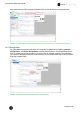


Table Of Contents
- 1 Electronic Shelf Labeling – A brief introduction
- 2 Label Family Introduction
- 3 Get the latest software and documentation
- 4 Core Appliance
- 5 Core Appliance initial setup
- 6 Start SES-imagotag Core Service and SES-imagotag Control Center
- 7 ESL Access Point Configuration
- 8 Selecting channels
- 9 Setup Security
- 10 Register labels
- 11 Start tagging
- 12 Templates
- 13 Integration
- 14 Troubleshooting
- 14.1 SES-imagotag Core Service Dashboard
- 14.2 Running the SES-imagotag Core Service as a background service
- 14.3 Where can get a demo/development license key?
- 14.4 Deleting the demo articles
- 14.5 Establish a network configuration when no DHCP is available – Step by step
- 14.6 Access point discovering with Bonjour Services
- 14.7 What can I do if the Status LED of the AP-2010 access point doesn’t turn blue?
- 14.8 Labels don’t come online
- 14.9 The encryption does not work
- 14.10 Unlocking labels
- 14.11 Starting Java applications
- 14.12 Encoding problems
- 14.13 Reserve RAM for Java heap space
- 14.14 Further documentation
- 15 Declaration

Core Service Quick Start Guide
Page 34 of 42
After enabling the Design Mode a new tab will show up.
FIGURE 1-35: SES-imagotag Template Editor Design Tab
12.2.4 Enable and show color red
As there are label types which are capable of showing the color "red"there's a short description how
to enable this inside the xsl template file.
l
Optional: Query whether it is a "red" label
l
<xsl:when test="Label/DisplayWidth = XXX and Label/DisplayHeight =
XXX and Label/DisplayColors = 'BLACK_WHITE_RED'">
l Add colors option to image tag:
l
<image width="XXX" height="XXX" colors="true" font-family="XXX">
l Show something in color red, e.g. text:
l
<text font-size="XXX" condense="XXX" font-weight="XXX" color=”red”>
12.2.5 Help Content
There’s a link to the Help content for the SES-imagotag Template Editor, open it by clicking Help –
Help Content in the SES-imagotag Template Editor or open the file index.html located in
C:\imagotag\template\help\.
Also you can find further information on the USB Stick under Documentation - Image Rendering
Reference.