
Operation Manual




38 Web Site Design and Construction
A new page—using Master 1 elements but otherwise blank—appears in
the workspace, with a corresponding entry nested under “Services” in
the tree. This dialog approach for adding pages has several advantages.
For example, you can insert a page anywhere in the site structure or
duplicate design elements from a specified page. Here’s another
method:
Click the Option 1 entry to select the page, then click the
Insert Page button above the Site Structure section.
The button automatically inserts a new page after the selected page,
using the same master page and with a default name. It’s up to you
whether to use the dialog or the button; see online help for even more
ways to add pages! Also, note that there’s a Delete Page button for
removing pages that have outlived its usefulness, and comparable
buttons above the Master Pages section for operating on master pages.
To rename the new page, right-click its entry and choose Page
Properties.... On the dialog’s Page tab, type “Option 2” as the
Page name. While you have the dialog open, you might take a
moment to review its various tabs to get an idea of page properties
you can set (see the end-of-chapter list for help references). Click
OK when you’re done.
By right-clicking on a page entry, you can also add an offsite link to
your site structure. Typically, this would be a page separate from your
site that you wanted to include in your site’s navigation structure (for
example, in a popup menu). Yet another option for adding pages is the
Import Web Pages command on the File menu, which lets you import
one or more pages from existing HTML Web sites. (By the way, you
can set a page to use no master page, which is handy if you’ve imported
an outside page and want to maintain its original design elements.)
Page order, and parent/child page relationships, reinforce a logical site
design that’s easier for the user to navigate and for you to manage. As
your site’s content evolves over time, so will its organization. And
that’s when you’ll really come to appreciate how simple WebPlus
makes it to rearrange pages by moving them around within the “tree.”
Let’s try an alternative to the four buttons on the Site tab (and in the
Site Structure dialog as well) that let you rearrange pages:
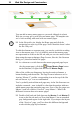
Move Down Move Up Make Child Make Parent