
Operation Manual




Web Site Design and Construction 35
Wherever it’s placed—across the top, down the left or right side, or
elsewhere—the navbar needs to be considered a fixture of the page
layout. It must never disappear or wander off to another corner. One
way to achieve this is to place the navbar on the master page layer (see
the next section) so it appears in the same place on each page that
shares that master page.
If you’re not using a navigation bar, at least make sure that each page
has a minimum of one or two hyperlinks, leading to the Home page
and/or related pages. Dead ends force users to rely on their browser’s
“Back” button to retrace steps, and that can all too quickly lead them
away from your site.
Pages and master pages
As you know, pages are the basic unit of Web site design. That’s true in
WebPlus as well—but in a WebPlus project, each page has a
“foreground” page layer and a “background” master page layer.
Master pages are part of the structure of your WebPlus project, and
provide a flexible way to store background elements that you’d like to
appear on more than one page—for example a logo, background,
header/footer, border design, or even a navigation element (see the
previous topic). The key concept here is that a particular master page is
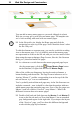
typically shared by multiple pages, as illustrated below. By placing a
design element on a master page and then assigning several pages to
use that master page, you ensure that all the pages incorporate that
element. Of course, each individual page can have its own elements on
the “foreground” layer.