
Operation Manual




Getting Started 23
Y You can also reload any saved WebPlus publication by choosing
1HZ from the File menu and selecting the 2SHQ6DYHG:RUN
option. You can work on any one publication at a time.
To undo the most recent change, press &WUO=. (But you can’t undo a
page addition or deletion, so use 5HYHUW to do that.)
Customizing Wizard elements
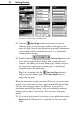
If you’re following along, you’ll have the Studio’s :L]DUG panel
displayed at this point. (Otherwise, click :L]DUG on the right.) Now
we’ll see how easy it is to experiment with and modify a Page Wizard
publication.
The “Wizard Questions” group at the top of the :L]DUG panel lists the
categories of information that you can customize. Notice that each
category corresponds to one of the original Page Wizard steps. Intially,
the “Company Details” item is selected. Click :HE'HWDLOV.
Y The lower portion of the panel provides boxes where you can
review and/or re-enter the “answer text” corresponding to the
Wizard questions. Try typing “Welcome” for your opening page
title, then click anywhere else onscreen to update the publication.
Y Now click &RORU6FKHPH in the upper group. This presents you
with a list of named schemes (the same list you’ll find on the
regular &RORUV6FKHPHVpanel). Each publication has one color
scheme assigned to it.
Color schemes are great time-savers and help to ensure consistent,
coordinated results. They work like a paint-by-numbers system using
five numbers. Instead of assigning a specific color to an element, you
can mark it with a scheme color number.