
Operation Manual




22
Getting Started
The Studio’s Colors, Text, and Lines panels
Y
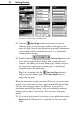
Click the
1H[W3DJH
button several times to view the
following pages. You can use the scrollbar at the right to view
more of a page. Note that the Wizard has inserted the information
you provided, and the rest of the text serves as a “placeholder,”
awaiting further changes.
Y
Double-click the
&XUUHQW3DJH
box at the
lower left. Up pops the Pages dialog, with several more basic
controls—for adding one or more blank pages, adding a copy of
the current page, deleting one or more pages, or displaying a
particular page in the publication.
Tip: You can double-click the
3UHYLRXV3DJH
button to
display your first (Home) page, or the
1H[W3DJH
button to
display the last page.
When the time comes to build your actual Web site, you can use these
controls if you want more (or fewer) pages than the Wizard provided.
For now, leave the page count at six. However, if you want to
experiment with the Pages dialog—or if you accidentally make any
changes that you don’t want to keep—here are some “emergency”
options:
Y
To revert to the previously saved copy of your publication, choose
5HYHUW
from the File menu. It’s a good idea to save your work
often!