
Operation Manual




Getting Started 19
For demonstration purposes, we will be working with the Formal
Business Site Wizard. So at least for now, pretend you’re the
Webmaster for a small business—it’s OK to use your imagination!
Y Launch WebPlus or choose 1HZ from the File menu.
Y You'll see the Startup Wizard. Select 8VHD3DJH:L]DUG.
Y Click on %XVLQHVV in the list of Page Wizard categories on the left
hand side Page and then click on )RUPDOin the list of designs
shown on the right hand side. Then click )LQLVK.
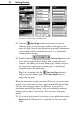
WebPlus retrieves the Wizard and displays it in Wizard Preview mode.
Here’s where you can initially add your own information to the design.
Y Following the prompt at the upper right (“Type your company
details”), type into the three fields to replace the sample text with
your own. When you’re done, click the 1H[W! button at the lower
right. To review a prior selection, click the %DFN button.
As you step through the selection screens, you’ll see the publication
preview update to reflect your choices. You can change as much or as
little as you like at this point—it’s always possible to revisit the choices
later!
Y At the last Wizard step, you can click various thumbnails to sample
different color schemes for the site. Pick the one you prefer; we’ll
come back to color schemes later in the chapter.
Y Click )LQLVK when you’re done, and the publication appears in the
WebPlus edit window.