
Operation Manual




32 Pages
Assigning multiple master pages
You can assign additional master pages to your page for more powerful
page design.
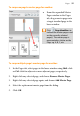
In the example above, both master page 'A' and master page 'B'
contribute to the page design (shown at top).
An additional master page needs to be created first. See Adding,
removing, and rearranging pages on p. 27.
To add an additional master page to an individual page:
• On the Pages tab, Ctrl-drag a master page thumbnail from the
Master Page window onto the chosen page's thumbnail in the Pages
window. The chosen page must have a master page assigned
already.
To add an additional master page to selected pages:
1. In the Pages tab, select pages in the lower window using Shift-click
or Ctrl-click for adjacent or non-adjacent pages, respectively.
2. Right-click any selected page again, and choose Add Master Page.
3. Select the additional master page from the dialog.
4. Click OK.