
Operation Manual




Pages 27
- or -
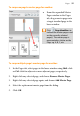
From the Pages context toolbar, click the down arrow on
the Page orientation button, then select Landscape Page (or
Portrait Page) from the flyout.
You can repeat the procedure for any other selected page.
Adding, removing, and rearranging
pages
Use the Pages tab to add/delete standard or master pages, assign
master pages to standard pages, and rearrange standard pages using
drag-and-drop. You can also change page orientations.
To add a single page:
1. On the Pages tab, click once to select a page in the Pages window.
The thumbnail that's shown as "selected" is independent of the page
you're currently working on. To work on a particular page, double-
click its thumbnail.
2. Click
Add to add a page (or master page) before the one
selected in the window.
- or -
To add a new page at the end of the publication, deselect all pages
by clicking in the neutral region of the lower window, then click the
Add button.
To add master pages:
For master pages, the above procedure applies but you need to click
Master Pages to open its window first.