
Operation Manual






Tables, Charts, and Calendars 89
To create a flowing table from scratch:
1. Create your table as described in To create a table (p. 87).
2.
On the control bar under your selected table, click Flow
Down to create a linked table based on extra rows, or Flow Right
for a linked table based on extra columns.
If you've a table that you've created previously or you're redesigning
your table layout, you can split it by row or column.
To split up an existing flowing table:
1. Select the table.
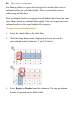
2. Hover over arrows shown at table bottom-centre or right-centre.
3. Drag these arrows up or left, respectively, to split by row or column.
The rows or columns hidden by dragging will pop up as a linked table
on mouse release.
To navigate between linked tables:
•
Under your selected table, click Next Table or Previous
Table.
To rejoin tables:
1. Select a linked table to which you want to rejoin the next table in the
linked sequence.
2. On the control bar, click
Rejoin.