
Operation Manual


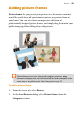


Pictures 101
• To set the size of the frame, drag out a region and release the
mouse button. If needed, use the Shift key while dragging to
maintain aspect ratio (to a square).
Picture frames can also be applied to objects such as text frames
and tables. These are considered to be borders, and can be
manipulated further with respect to width, edge selection, and edge
alignment. See Adding borders in PagePlus Help.
To add a picture to a frame (and vice versa):
• From the Assets tab (Pictures category), drag and drop a picture
directly onto the picture frame. - or -
• From the Assets tab (Picture Frames category), drag and drop a
picture frame directly onto an already placed picture.
The picture is added to the frame using default Picture Frame
properties, i.e. it is scaled to maximum fit; aspect ratio is always
maintained. However, you can alter the picture's size, orientation,
positioning, and scaling relative to its frame.
Creating shaped picture frames
While you can take advantage of PagePlus's preset frames you can create
your own shape (e.g., a morphed QuickShape or closed curve) then
convert it to a picture frame.
To create a shaped picture frame:
1. Create a closed shape or QuickShapes.
2. Right-click the shape and select Convert To>Picture Frame.
You can then add a picture to the frame as described previously.
Any object you've designed that contains a "hole" can be converted
to a picture frame using the above method.