
Operation Manual




124 Tables, Charts, and Calendars
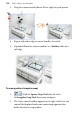
To crop a picture using shapes:
1. Place the shape in front of the picture to be cropped, using the
Arrange menu and/or Arrange toolbar as needed.
2. With both objects selected (or grouped), choose Crop to Shape
from the Tools menu.
You can restore an object cropped in this way to its original shape, but
the upper "cropping" object is permanently deleted (use Undo to recover
it if necessary).
Using Cutout Studio
Cutout Studio offers a powerful integrated solution for cutting objects
out from their backgrounds. Depending on the make up of your images
you can separate subject of interests from their backgrounds, either by
retaining the subject of interest (usually people, objects, etc.) or
removing a simple uniform background (e.g., sky, studio backdrop). In
both instances, the resulting "cutout" image creates an eye-catching look
for your publication.
The latter background removal method is illustrated in the following
multi-image example.