
Operation Manual




120 Tables, Charts, and Calendars
Adding pictures to the page
Pictures can be added to your publication by dragging directly onto your
page.
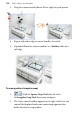
To add a picture to your page:
• From the Assets tab (Pictures category), drag a picture
thumbnail directly onto the page, inline into artistic/frame text
(at a chosen insertion point), or into a picture frame. Once
added, the picture thumbnail indicates the number of times the
picture has been used in the publication (
).
When placed, pictures are linked to your project by default and not
embedded. Photos can be embedded instead on import via the
Tools toolbar or at any time using the Resource Manager.
If you've positioned empty picture frames you can use AutoFlow to
automatically populate them with pictures.
AutoFlow—adding content automatically
AutoFlow lets you flow the pictures present in the tab's Pictures
category throughout empty picture frames spread throughout your
publication (you can't reflow pictures once frames are populated with
content).