
Operation Manual




118 Tables, Charts, and Calendars
To change picture scaling and alignment:
1. Select the picture frame and choose
Frame Properties on
the Picture context toolbar.
2. In the dialog, you can scale to maximum/minimum, Stretch to
Fit, or use the original image's size (No Scale).
3. To change vertical alignment of pictures within the frames,
select Top, Middle, or Bottom.
4. For horizontal alignment, select Left, Centre, or Right.
Creating shaped picture frames
While you can take advantage of PagePlus's preset frames you can create
your own shape (e.g., a morphed QuickShape or closed curve) then
convert it to a picture frame.
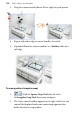
To create a shaped picture frame:
1. Create a closed shape or QuickShapes (p. 135 and p. 133,
respectively).
2. Right-click the shape and select Convert To>Picture Frame.
You can then add a picture to the frame as described previously.
Any object you've designed that contains a "hole" can be converted
to a picture frame using the above method.
To store the picture frame for reuse globally or just in the
publication, drag to the Assets tab's My Designs or Picture Frames
category. For the latter, if you close the publication, you'll be asked if
you want to save the frame to an asset pack.