
Operation Manual




Tables, Charts, and Calendars 117
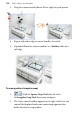
2. The mouse pointer changes to the Picture Paste cursor.
What you do next determines the initial size and placement of
the picture frame.
• To insert the frame at a default size, simply click the
mouse.
- or -
• To set the size of the frame, drag out a region and
release the mouse button. If needed, use the Shift key
while dragging to maintain aspect ratio (to a square).
To add a picture to a frame (and vice versa):
• From the Assets tab (Pictures category), drag and drop a
picture directly onto the picture frame.
- or -
• From the Assets tab (Picture Frames category), drag and drop a
picture frame directly onto an already placed picture.
The picture is added to the frame using default Picture Frame
properties, i.e. it is scaled to maximum fit; aspect ratio is always
maintained. However, you can alter the picture's size, orientation,
positioning, and scaling relative to its frame.
To change picture size and positioning:
All selected picture frames that contain a picture
will display a supporting Picture frame toolbar
under the frame. This offers panning, rotation
(90 degrees anti-clockwise), zoom in, zoom out,
and replace picture controls).