
Operation Manual




80 Working with Objects
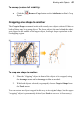
To crop using the object's original outline:
1. Select the object, then select the Square Crop Tool on the
Attributes toolbar's Crop flyout.
2. For a vector object (shape, line, etc.), drag one of its edge or corner
handles inward for unconstrained cropping; press the Shift key while
dragging for constrained cropping (aspect ratio is maintained). For
pictures (above), the crop operation is constrained by default.
To scale the object within the crop outline, press the Ctrl key, click
your left mouse button, then move your mouse upwards or
downwards.
To crop by modifying the object's outline:
• Select the object and select the Irregular Crop Tool on the
Attributes toolbar's Crop flyout. The Curve context toolbar appears,
which lets you control the displayed nodes and connecting segments
that define the object's crop outline. See Editing lines in PagePlus
Help.
• To move a node (control point) where you see the cursor,
drag the node.
• To move a line segment (between two nodes) where you
see the cursor, drag the segment.
To position a cropped object within its crop outline:
• With either crop tool selected, click the object and drag its centre
(when you see the hand cursor).
To feather the crop outline:
• With either crop tool selected, click the object.
• From the Crop context toolbar, set a Feather value using the up/down
arrows, slider or by direct input. Feathering is applied outside the crop
outline by the set point size.