
Operation Manual




Working with Objects 73
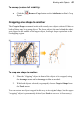
To resize an object (in general):
1. Select the object.
2. Click one of the selection handles and drag it to a new position while
holding down the left mouse button.
Dragging from an edge handle resizes in one dimension, by moving that edge.
Dragging from a corner handle resizes in two dimensions, by moving two edges.
Text in frames and tables doesn't change size when the container
object is resized.
To set two or more objects to the same horizontal or vertical size as
the last selected object, you can use Arrange>Size Objects....
You can also make fine resizing adjustments from the Transform
tab.
To resize freely:
• Drag from a corner (or line end) handle.
To constrain a shape, frame object, or table object when resizing:
• Hold the Shift key down and drag from a corner (or line end) handle.
For shapes, this has the effect of keeping a square as a square, a circle as a
circle, etc.