
Operation Manual



52 Working with Pages
To move an object to a specific layer:
• Drag the object to a new position in the layer stack.
- or -
Select the object and choose Send to Layer from the Arrange menu
(or the right-click Arrange submenu), then select the destination layer
from the submenu.
Objects are given default names when they are created (e.g., Text Frame,
Picture), but can be renamed to make them more easy identify them from other
layer objects. If a group is present it can also be assigned a more meaningful
name.
To change an object's or group's name:
1. In the Layers tab, expand the layer entry to which an object or group
belongs.
2. Select the object/group, then click on its name.
3. At the insertion point, type a new name then either press Enter or
click away from the tab.
Setting guides
Layout guides are visual guide lines that help you position layout elements.
They can include page margins, row and column guides, bleed area guides,
and ruler guides.
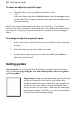
Page margin
settings are fundamental to your layout, and
usually are among the first choices you'll make after
starting a publication from scratch. The page margins are
shown as a blue box which is actually four guide lines—
for top, bottom, left, and right—indicating the underlying
page margin settings. If you like, you can set the margins
to match your current printer settings.