
Operation Manual




Working with Pages 41
Assigning multiple master pages
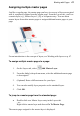
Just like a regular page, the master page can have its own set of layers associated
with it, completely unique from the regular page! From the Layers tab, you'll see
a master layer (e.g., Master Layer 1 [A]) as a separate entry. You can insert
master layers from other master pages to assign additional master pages to your
page.
For an introduction to the concept of layers, see Working with layers on p. 47.
To assign multiple master pages to a page:
1. On the Layers tab, select Add Master Layer.
2. From the dialog's drop-down menu, select the additional master page
to be assigned.
3. (Optional) Enter a different name for your layer.
4. You can also modify layer properties as for standard layers.
5. Click OK.
To jump to a master page from the standard page:
• Double-click on a Master Layer entry in the Layers tab.
- or -
Right-click a master layer and choose Go To Master Page.
The master page assigned to the master layer is displayed.