
Operation Manual




38 Working with Pages
To add master pages:
For master pages, the above procedure applies but within the Master Pages
window.
To delete a single page/master page:
1. On the Pages tab, select the page (or master page) to delete on the
appropriate window by clicking its thumbnail.
2. Click the Remove button.
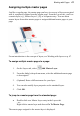
To rearrange pages:
• On the Pages tab, in the lower Pages window, drag a page thumbnail
to a new location in the page sequence.
Understanding master pages
Master pages provide a flexible way to store background elements that you'd
like to appear on more than one page—for example a logo, background,
header/footer, or border design.
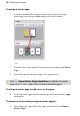
A - Page, B - Master Page
The key concept here is that a particular master page is typically shared by
multiple pages, as illustrated below. By placing a design element on a master
page and then assigning several pages to use that master page, you ensure that
all the pages incorporate that element. Of course, each individual page can have
its own "foreground" elements.