
Operation Manual




Working with Pages 37
You can also change the orientation of master pages using the
equivalent Change page orientation on the Pages tab's Master
Pages window.
This feature is only applicable for publications using standard page
sizes (e.g., A4, A5, Letter, etc.)
For multi-page spreads, it's not possible to rotate an individual page
within that spread.
Adding, removing, and rearranging pages
Use the Pages tab to add/delete standard or master pages, assign master pages
to standard pages, and rearrange standard pages using drag-and-drop. You can
also change page orientations (see p. 36).
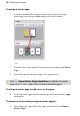
The tab displays master pages in the upper Master Pages window (shown
collapsed) and standard publication pages in the lower Pages window.
The Page Manager button provides additional options, such as duplicating
a particular page or adding/deleting multiple pages.
To add a single page:
1. On the Pages tab, click once to select a page in the Pages window.
The thumbnail that's shown as "selected" is independent of the page
you're currently working on. To work on a particular page, double-
click its thumbnail.
2. Click Add to add a page (or master page) before the one selected
in the window.
- or -
To add a new page at the end of the publication, deselect all pages by
clicking in the neutral region of the lower window, then click the Add
button.