
Operation Manual




36 Working with Pages
Uniform and mixed page orientations
If you've changed your mind about the page orientation chosen at page setup,
you can change the page orientation uniformly across your publication at any
time.
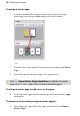
PagePlus also lets you create a publication possessing a mixture of portrait and
landscape page orientations. Changing a page's portrait orientation to landscape
is especially useful when presenting a wide table, calendar, bar chart, or other
graph.
To change all publication pages from portrait to landscape (or vice
versa):
• From the Pages context toolbar, click the down arrow on the
Publication orientation button, then select Landscape Publication
(or Portrait Publication) from the flyout.
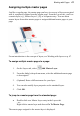
To change a page from portrait to landscape (or vice versa):
1. In the Pages tab, double-click to select a page.
2. Click Change page orientation to swap between portrait and
landscape orientation.
- or -
From the Pages context toolbar, click the down arrow on the
Page orientation button, then select Landscape Page (or Portrait
Page) from the flyout.
You can repeat the procedure for any other selected page.
When printing to desktop printers or publishing as PDF, all pages automatically
orient themselves to the currently selected printer's orientation. For press-ready
PDF output, ensure Impose pages is checked in the Publish PDF dialog
(General tab). For screen PDF versions, Impose pages can be unchecked to
maintain the original orientation of all pages.