
Operation Manual




34 Working with Pages
printer is currently chosen in the Print dialog. On the Pages context toolbar,
these page sizes are indicated by the suffix "(From printer)" in the Paper size
drop-down menu.
Once you've set up your publication, you can optionally include repeated page
elements on every page by creating master pages (p. 38).
Creating custom publication sizes
If the pre-defined options are not what you're looking for, you can customize
any publication type to suit your requirements. You can base the custom
publication on a pre-defined option by selecting the option in advance from the
list.
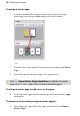
Created from: You'll need to:
Regular/Booklet
For regular publications: Select a page size, if you
want Facing pages (with Dual master pages) and
adjust Width/Height to suit; enable your preferred
page orientation option (Portrait/Landscape).
For booklets: As above, but choose a Booklet type
as well.
Small
Select a Small publication type (card, tag, voucher,
etc.), then click Create Custom. From the dialog,
you can set:
• Size: The custom publication size.
• Gaps: The vertical and horizontal space
between each "ganged" small
publication.
• Margins: For custom Margins, override
auto settings with Auto check box and
set margins manually.
• Layout: Sets the number or small
publications per page in an X/Y grid
arrangement.