
Operation Manual






260 Publishing and Sharing
Multi-section slides
One strength of the slideshow feature comes from the ability to make "multi-
section" slide variants based on a single PagePlus page (this is done using page
layers). Multi-section slides allow you to build up an image in sections; display
multiple images and text objects sequentially on the same page; show and hide
page elements; and so on. Simply create slides based on the original page then
edit them by switching on/off specific layers to create unique slides. A few
examples...
• Create time-delayed bulleted lists—great for mouse- or pointer-driven
presentations.
• Introduce artistic elements to your page over time.
• Change photos over time.
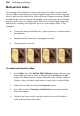
To create multi-section slides:
1. In the Slides tab of the Publish PDF Slideshow dialog, choose a page
from which you want to create a slide and click the Insert or Copy
button. The former inserts a chosen slide above the currently selected
slide as a copy; the latter simply places a copy above a selected slide.
2. Select the new slide and click the Properties button.
3. Set a slide-specific Transition and Duration (in seconds) from the
drop-down menus.
4. Uncheck any layers which you don't want to be part of the slide to
make it distinct from other slides.