
Operation Manual






Publishing and Sharing 257
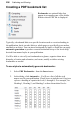
To remove all bookmarks in the list, clear all check boxes.
3. Click OK to generate bookmarks.
The mechanics of creating a PDF bookmark list by hand are simple. For
example, bookmarking a specific location (for example, a piece of text or a
graphic object) entails placing an anchor at that location; the anchor serves as
the target for the bookmark link.
To insert bookmarks by hand:
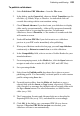
1. Select PDF Bookmarks... from the Insert menu.
2. In the bookmark tree, display the entry below which you want to
create the new bookmark. (Check Create as sub-entry if you want the
new bookmark nested as a "child" of the selected entry.)
3. Click the Create... button.
3. In the Create Bookmark dialog, enter the text for your bookmark in
the Bookmark Title field. This text will be displayed in Adobe
Reader as the bookmark name.
4. Click to select the bookmark destination type, then enter the
destination.
• To bookmark a specific page in the publication, set Destination
Type to be Page, then select the target page's Page Number.
• To bookmark to a specific location, set Destination Type to be
Anchor, then select the target anchor's Anchor Name.
5. Click OK to confirm your choices.
You'll need to have created an anchor in advance to allow it to be
bookmarked. You can create PDF bookmarks automatically when
creating anchors. (See Adding anchors to objects on p. 83.)
To delete bookmarks:
1. Select PDF Bookmarks... from the Insert menu.