
Operation Manual






256 Publishing and Sharing
Creating a PDF bookmark list
Bookmarks are optional links that
appear in a separate pane of the Adobe
Reader when a PDF file is displayed.
Typically, a bookmark links to a specific location such as a section heading in
the publication, but it can also link to a whole page or specifically to an anchor
attached to an object. You can insert bookmarks by hand, or PagePlus can apply
automatic generation to produce a nested bookmark list up to six levels deep,
derived from named styles in your publication.
You'll be able to view all your bookmarks at a glance, organize them into a
hierarchy of entries and subentries, and create, modify or delete existing
bookmarks as needed.
To use styles to automatically generate bookmarks:
1. Select PDF Bookmarks... from the Insert menu.
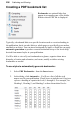
2. In the dialog, click Automatic.... You'll see a list of all the style
names used in your publication. Check boxes to include text of a given
style as a heading at a particular level (1 through 6). For example, for
Heading 1, Heading 2, and Heading 3 at three hierarchical levels: