
Operation Manual




Pictures, Lines, and Shapes 213
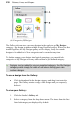
X
rotation
Y
rotation
Z
rotation
X and Y
rotation
Transform about your 3D objects' axes instead of your pages' axes
by holding the Ctrl key down as you transform using the nodes.
You can also adjust the angle and elevation of each "active" light on the page by
dragging the light pointer to a position which simulates a light source.
After any transformation, the underlying base object remains
editable.
To add dimensionality:
1. Select an object and click the Instant 3D button on the
Attributes toolbar. The object immediately adopts 3D characteristics
with a red orbit circle displayed in the object's foreground.
2. Click a 3D effect category from the first drop-down menu on the 3D
context toolbar; the bar's options change dynamically according to the
category currently selected. See the PagePlus Help for more details.
Click Reset Defaults on the context toolbar to revert to the
object back to its initial transformation.
To switch off 3D effects:
• Click Remove 3D on the context toolbar. You can always click
the Attribute toolbar's Instant 3D button at any time later to reinstate
the effect.