
Operation Manual




Working with Objects 87
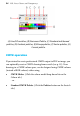
This tree view greatly improves the ability to select and manage nested
objects in more complex drawings. It's also great for visualizing your
object order.
2. Click the object entry in the tab. It will become highlighted and
selected on your page.
Trouble locating your named object or group? Search for it by using
Find Object on the Edit menu.
To move an object to another layer:
• Right-click the object in the workspace, and choose Move Object
to Layer. From the Move To Layer dialog, select the specific
destination layer, and click OK.
To hide/show an object on a layer:
• Right-click the object in the Layers tab (or multiple objects via
Ctrl-click), and select Visible. To show again, click the
icon
displayed on the object entry.
Cutting up objects
It is possible to cut any object (or picture for that matter) by using
the Knife Tool. You can cut along a freeform or straight line drawn
across your object(s), leaving you with separate fragments of the
original.