
Operation Manual




62 Lines, Curves, and Shapes
As soon as you draw a line, or choose one of the line tools when a line is selected,
you'll see the line's nodes appear. Nodes show the end points of each segment in
the line. Curved lines usually have many nodes; straight lines have only two.
If you're using a pen tablet or using simulated pressure sensitivity (with
DrawPlus's Pressure tab), you'll be able to draw realistic lines of varying width
and opacity using pressure sensitivity—just like drawing with real pencils and
pens. See Pressure sensitivity on p. 275.
Drawing lines
To draw a freeform line:
1. Choose the Pencil Tool from the Drawing toolbar.
2. Click once, then drag across the page, drawing a line as you go. The
line appears immediately and follows your mouse movements.
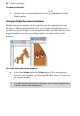
3. To end the line, release the mouse button. The
line will automatically smooth out using a
minimal number of nodes. Note the little
squares indicating its nodes—at the two ends,
and at each point where two line segments
come together.
4. (optional) To set the degree of smoothing to be applied to the line (and
subsequent lines), set the Smoothness value on the context toolbar
above your workspace.
Click its right arrow to display a slider—drag right, then left. You’ll see
your drawn line—still selected—smooth out (with fewer nodes) as you
drag right, and become more jagged (with more nodes) as you drag
left. For the smoothest curves the next time you draw a freeform line,
leave the sliding arrow towards the right of the slider.