
Operation Manual




60 Lines, Curves, and Shapes
Selecting multiple objects
It is also possible to select more than one object, making a multiple selection
that you can manipulate as if it were one object, or turn into a grouped object
(see p. 135).
To select more than one object (multiple selection):
1. Choose the Pointer Tool or Rotate Tool.
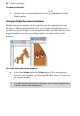
2. Click in a blank area of the page and drag a "marquee" box around the
objects you want to select.
Release the mouse button. All of the objects within the marquee box
are selected and one selection box, with handles, appears around the
objects. To deselect, click in a blank area of the page.
- or -
1. Click on the first object for selection.
2. Press the Shift key down then click on a second object.
3. Continue selecting other objects to build up your multiple selection.
Handles (or a bounding box, depending on the tool) appear around
the multiple selection.
To select all objects on the page:
• Choose Select All from the Edit menu (or use Ctrl+A).
To add or remove an object from a multiple selection:
• Hold down the Shift key and click the object to be added or removed.