
Operation Manual




52 Working with Pages
You can also select an object and then choose To Object from the
Rotate Canvas drop-down list. The canvas adjusts so that the
object is positioned square to the X and Y axes.
To reset your canvas:
• With the button enabled, double-click anywhere on the canvas to
reset.
Applying the Rule of Thirds
Traditionally a technique used in photography,
the Rule of Thirds grid can also be applied to your
design to help with its composition.
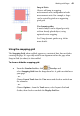
For example, note the way the primary object
(pear) is vertically aligned between the top- and
bottom-left intersecting points, i.e., under the stalk
and core. The secondary object (orange) is located
under the opposite intersecting line to offer some
balance to the design.
By aligning objects to intersecting horizontal and vertical lines (rather than just
centring objects on the page) you can create designs with greater visual interest.
When a grid is applied to your page the displayed context toolbar lets you alter
the grid's colour and opacity, and reset or delete the grid. (See DrawPlus Help.)
The grid is actually an overlay which appears as an ‘Overlay Layer’ in
the Layers tab. As such you can use the Visible layer control to
temporarily show/hide the grid.
To apply a Rule of Thirds grid:
1. From the Standard toolbar, click Overlays and
select Show/Hide Rule of Thirds from the drop-down list. A coloured
grid is overlaid over your page.