
Operation Manual


Applying Special Effects 211
Creating outlines
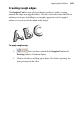
DrawPlus lets you create a coloured outline around objects, especially text and
shapes (as a filter effect). For any outline, you can set the outline width, colour
fill, transparency, and blend mode. The outline can also take a gradient fill, a
unique contour fill (fill runs from the inner to outer edge of the outline width),
or pattern fill and can also sit inside, outside, or be centred on the object edge.
As with all effects you can switch the outline effect on and off. You'll be able to
apply a combination of 2D or 3D filter effects along with your outline, by
checking other options in the Filter Effects dialog.
Colour Fill
The Colour Fill effect applies a colour over any existing fill, and lets you achieve
some effects that are not possible with other controls. For example, you can use
Colour Fill to force everything in a complex group to a single colour, or recolour
a bitmap in a solid colour (effectively ignoring everything but the transparency).
Feathering
Feathering is a filter effect that adds a soft or blurry edge to any object. It's great
for blending single objects into a composition, vignetted borders on photos, and
much more. You can apply feathering in conjunction with other filter effects.
Blur
Various blur effects can be applied to DrawPlus objects. The types of blur
include:
• Gaussian: the effect smooths by averaging pixels using a weighted
curve.
• Zoom: applies converging streaks to the image to simulate a zoom
lens.
• Radial: applies concentric streaks to the object to simulate a rotating
camera or subject.
• Motion: applies straight streaks to the object to simulate the effect of
camera or subject movement.