
Operation Manual




Working with Objects 135
• To flip the selection top to bottom, click Flip Vertical on the
same toolbar. (Left and right stay the same.)
You can use equivalent options on the Arrange tab (or Arrange
menu).
Locking/unlocking an object
To prevent accidentally moving, resizing, flipping, or rotating an object, you can
lock it in position.
To lock/unlock an object:
1. Select the single or grouped object.
2. Choose Lock Position or Unlock Position from the Arrange menu.
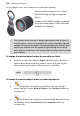
When you lock the object, the cursor changes to a lock symbol.
You can still alter a locked object’s fill, line, or transparency
properties.
In the Layers tab, you can prevent an object from being moved or
modified. Simply right-click the object and select Freeze.
Grouping objects
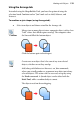
The advantage of converting a set of
objects into a group is that it is easier
to select and edit the objects all at the
same time. The only requirement for
grouping is that multiple objects are
selected in advance (see p. 59).
To create a group from a multiple selection:
• Click Group below the selection.