
Operation Manual






Using Brushes 95
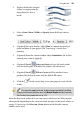
2. Display the Brushes tab and
choose a category from the
drop-down list, then a
brush.
3. Select a Line Colour, Width, or Opacity from the Brush context
toolbar.
4. (Optional) For spray brushes, adjust Flow to control the density of
paint laid down as you apply it, like "layering up" a brush then
painting.
5. (Optional) From the context toolbar, adjust Smoothness (to set how
smooth your stroke is applied).
6. (Optional) Enable Select-on-Create to leave the brush stroke
selected on the page. If disabled, the stroke is left deselected.
7. (Optional) Enable Fill-on-Create to fill the unclosed curve
produced by the brush stroke with the default fill colour.
8. With the brush cursor, drag across your page to create a brush
stroke.
You can also apply a brush stroke around an object's outline
(shape, artistic text, picture, etc.) via Brush Stroke on the Line tab.
See Setting line properties on p. 152.
After this first brush stroke, there are two ways in which you are likely to paint
subsequently, depending on the extent to which you plan to edit brush strokes as
you go. To assist you, the Select-on-Create button on the Brushes context
toolbar can be used: