
User Manual




Rev. 20190228A
To Contents 21 of 23
Phone
Mailing Address
USA: 1-800-875-3230
International: +1-323-944-0822
SecureData, Inc.
3255 Cahuenga Blvd. West #301
Los Angeles, CA 90068-1178
NOTE: Prior to contacting SecureData, Inc., please have the following information ready.
• Version Number (refer to Determining the Version Number below)
• Serial Number (S/N) on the back of the device
Troubleshooting
█ After unlocking the Drive, your computer shows that the external Drive is connected
(icon displays) but you cannot access the Drive data (it doesn’t display in Explorer
(Windows) or Finder (Mac).
The Drive needs to be formatted—no data exists. It may have been reset. To
format the Drive Refer to Reformatting the SecureDrive on page 15.
█ If you think your keypad is faulty, contact Technical Support, page 20.
DETERMINING THE VERSION NUMBER
In User Mode:
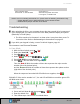
1. With the Drive locked, press [ ]
2. Enter your User PIN. [ ]
3. Press [ ]
4. Wait for , then press [ ]
5. Press 8,6 (V,N for Version Number) [ ]
6. Press [ All LEDs blink once together ]
Then the Red will blink the number of times that represent the major version
number (left of the decimal point),
and the Green will blink the number of times that represent the update version
(right side of the decimal point).
When the sequence has ended All LEDs blink once together, then .
EXAMPLE: if the version number is 1.7, the red LED will blink once and the green LED
will blink seven times.
In Admin Mode:
1. Press and hold down 1-and then press- [ ]
2. Enter the Admin PIN. [ ]
3. Then follow steps 3 and on for User Mode above.