
User Manual





Rev. 20190228A
To Contents 18 of 23
Figure 4: The SecureDrive is displayed here as “Disk 1.” It is Online and allocated
(Healthy) and ready for use.
13. Close the Computer Management dialog if it’s still open.
When finished the New Volume (usually E) reads Healthy and a second Explorer window
opens to display the Drive contents. The SATA blue and Green LED lights.
FOR MAC OS
1. Connect to a Mac computer’s USB port.
2. Unlock the drive with either User or Admin PIN. (To create a User PIN if you have
not already done so, see Creating a User PIN after a Reset (blank Drive) on page
15.)
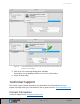
3. Click Initialize in the popup message (shown below). The Disk Utility Dialog
displays.