
Instruction manual






7. Run putsys.bin
8. Load cpm_loader.bin at 0x0800
9. Write the memory page 0x0800 to disk sector 0
10. Reset the computer
11. Start CP/M using the monitor cpm command.
Running CP/M
Built-in commands
I will not attempt to reproduce here a guide to running CP/M. The original Digital Research CP/M 2
system manual has been converted into a web page:
http://www.gaby.de/cpm/manuals/archive/cpm22htm/. Here one can find all the details about using the
system, with all the commands listed. However, we need to do a little more work here to create a truly
usable CP/M.
CP/M 2.2 has only six built-in commands. These are DIR (list a disk directory), ERA (erase a file),
REN (rename a file), SAVE (save memory to a file), TYPE (display a text file on the screen), and
USER (change a user number). Note there is no command that will copy or move a file, no command
to show how much disk space is available, or what the file sizes are (DIR only displays the file names).
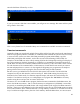
To get used to the CP/M commands, start with DIR (you can enter commands as upper or lower case,
CP/M converts them to uppercase):
The “No file” output shows that there are no files in the directory of disk A. We can create a file using
the SAVE command. This command will take a number of memory pages, starting at 0x0100, and save
them to the disk as a CP/M file. Just for an example, we will save one page of memory, and give it the
name TEST.COM. The file will of course contain garbage, but that is not a concern for now. After
entering the SAVE command, enter the DIR command and you will see the directory entry for the file:
26