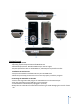
Sansa SanDisk c140 User Instructions By Brandon Campbell 1
Introduction and Basic Overview These instructions are for users operating the Sansa SanDisk MP3 player. These guidelines will instruct the consumer on how to use this product's various functions, easily and efficiently. The Sansa SanDisk MP3 is a multi‐purpose digital audio player. Its main function is to play songs stored onto its memory. These files are transferred onto it via a USB cable connection. It also includes a digital FM tuner, a photo browser, and a voice recorder.
Safety Guidelines CAUTION: Keep device away from bathtubs, swimming pools, and other water surrounding areas, as player is not waterproof. CAUTION: Do not use or store in places exposed to extreme sunlight or in humid locations. Exposure to direct sunlight may cause damage to screen. WARNING: Do not use Headphones at high volumes. Safely keep the volume at a moderate level.
Getting Started System Requirements ‐Operating System Required: Microsoft Windows XP ‐Software Requirements: Windows Media Player 10.0 or higher. ‐Peripheral/Interface Devices: CD‐ROM Drive, USB 2.0 port required for transfer. Installation CD and Process ‐First place the SanDisk Installation CD into your CD‐ROM Drive. ‐Follow the quick steps presented on the screen to properly install the program.
Transferring MP3’s and Photos ‐Connect the Sansa Player to the computer and open the data folder that comes up. ‐Take the music or image files and drag and drop them into the folder. ‐Drag and drop them back the same way onto your computer. NOTE: The player will automatically detect if there is space available for transfer. If it is full, the file will not be added. Deleting Files ‐Connect the Sansa Player to the computer and open the data folder that comes up.
Playlists ‐Listen to favorite songs selected. Recordings ‐Listen to songs recorded. *[More information in Voice Section] Music Options ‐Add current song to playlist by selecting Add to Go List and pushing Right button. ‐Clear songs from playlist by selecting Clear Go List and pushing Right button. Pick yes or no with the Center button. ‐Turn On or Off Shuffle mode by pressing Right button ‐Turn All, Off, or One Repeat mode by pressing Right button.
Voice Section This section is where you can record your voice or other close sounds. Press the Menu button, scroll down, and click right to select Voice. The Mic mentioned in the “Functions and Controls” section is used to do the recording. ‐Push the Play/Pause button to start recording. Press it again to stop it. ‐Press the Center button and pick yes or no to save the recording or not. NOTE: You can listen to your sounds recorded in the Music Section.
Display ‐Click Backlight to set how long the backlight will be on before it turns off after the player has been idle, to save energy. [5s, 10s, 15 minutes, 30, 45, 60, 90 or On to keep it on permanently] Press any button to turn the light back on. ‐Select Contrast and use the Left and Right buttons to set the contrast level from depending on your lighting surroundings. Language ‐Choose a language you want the player to use.
Sources Pictures (P) included are modified from: P1. Title Picture: P2. Included Items: P3. Warning Symbols: P4. Side Views: P5. Screen Display: