
User manual

ROUTE 66 Mobile 8 Chicago 8000 - User Manual
78
To further customize the look of the map, go to Settings > Maps.
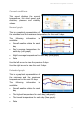
If you want to change the overall
look of the map (solid areas,
streets, etc.) during map browsing
or navigation, do the following:
1. Select Main menu > Extras
> Colour schemes.
2. Scroll the list of available
themes. They are listed alphabetically.
3. Select a theme and load it. From now on, all maps will have this colour
scheme.
Update - Overview
Not only that you use a powerful navigation solution, but you can also
update the software. From time to time, new updates are released. They
contain new features or improvements.
You simply access the Update section and download a newer version that
is automatically installed on your device. It’s free and fast!
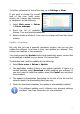
To download and install an update, do the following:
1. Select Main menu > Extras > Update.
2. The application checks if there is any update available. If there is a
version available, select Download to start updating your software. If
you don’t want to install the update, select the Cancel icon and abort
the procedure.
3. The update is downloaded. Depending on the size of the file and the
network speed, the downloading time may vary.
4. When the download completes, the update is automatically installed.
The software updates won’t influence your personal settings
and data. Your trips, favourites, etc. are preserved.