
User manual

ROUTE 66 Mobile 8 Chicago 8000 - User Manual
70
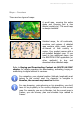
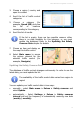
3. Choose a region / country and
open its content.
4. Scroll the list of traffic control
categories.
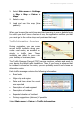
5. Choose a category (for
example,
Speed 130) and view
the list of locations
corresponding to this category.
6. Scroll the list of results.
If the list is empty, there are two possible reasons: either
there is no data available for this category, or you must
update the database! Refer to the Updating the Safety
Cameras Data chapter for details.
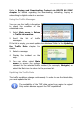
7. Choose an item and display on
the map this traffic control.
8. Select Main menu to access
the options relevant for the
selected traffic control (for
example, Navigate).
Updating the Safety Cameras Data
The database of traffic controls changes continuously. In order to use the
latest data, you must update the list.
The availability of the traffic control data varies from region to
region!
You can update your traffic control data in two ways:
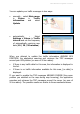
manually - select Main menu > Extras > Safety cameras and
select Update.
automatically – Select Settings > Extras > Safety cameras
interval and set the frequency of automatically receiving new data
(weekly / monthly).